# User Interface Screenshots
The HeurAMS project currently has two frontend implementations. This document presents their screenshots (kept as up-to-date as possible):
- **Textual Basic User Interface** (`heurams.interface`): A built-in cross-platform TUI built with the Python Textual framework, supporting touch, mouse, and keyboard operation modes. This is the current out-of-the-box default frontend.
- **KiriMemo** (`org.kde.kirimemo`): A modern cross-platform frontend based on the KDE Kirigami framework, built with C++ and QML, directly reusing the Python kernel via `PyOtherSide`, providing native experiences across multiple platforms (not yet stable).
Feel free to contribute code to existing frontends or develop your own.\
See the [Contributing Guide](../CONTRIBUTING.md#new-user-interface-frontends).
## Screenshots of the Basic User Interface
> The terminal emulator used for screenshots is KDE Konsole.\
> Fonts used: Cascadia Code and Noto Sans SC.\
> Terminal size set to 80x25 (the software also supports larger terminal sizes).
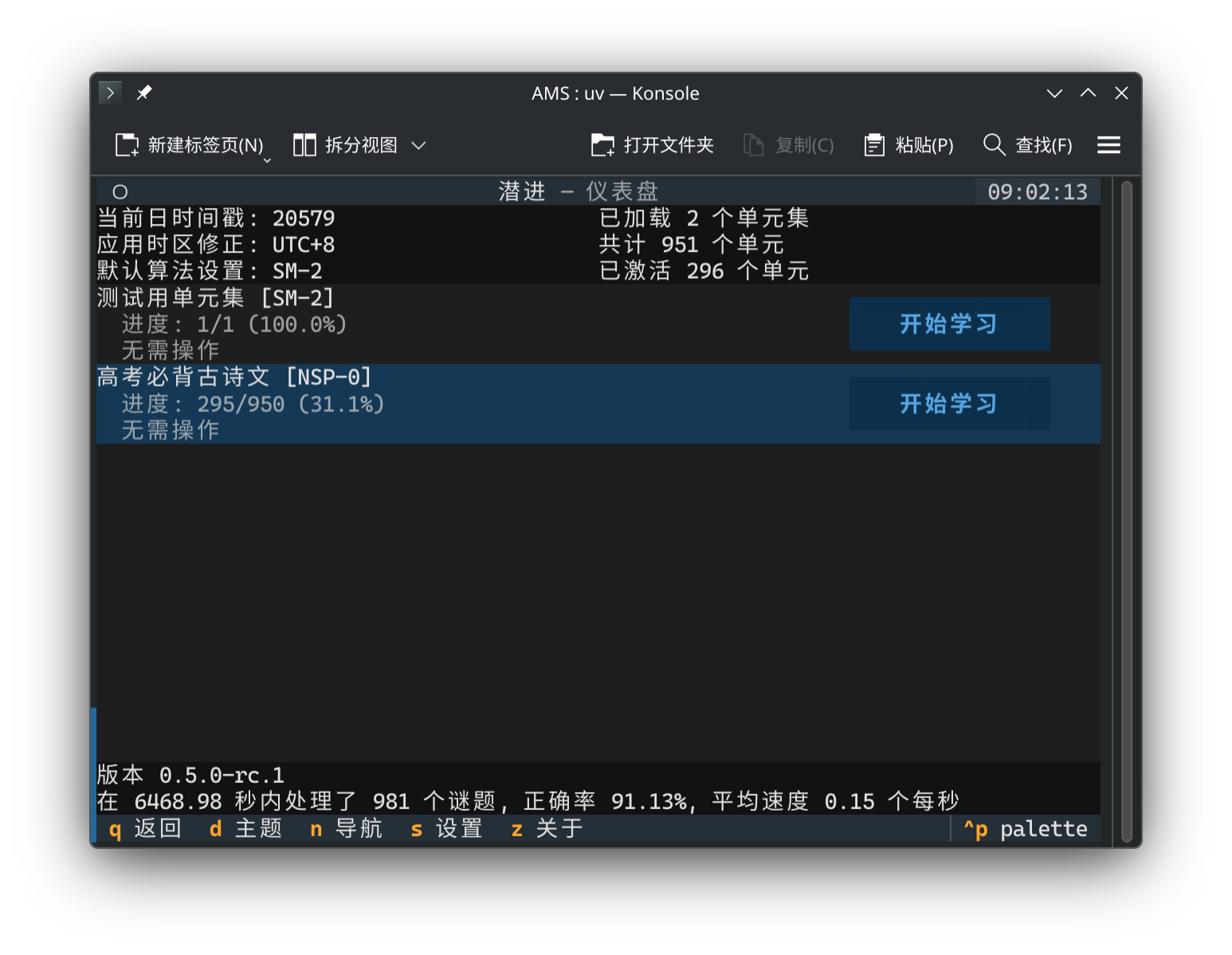
### Dashboard & Navigator
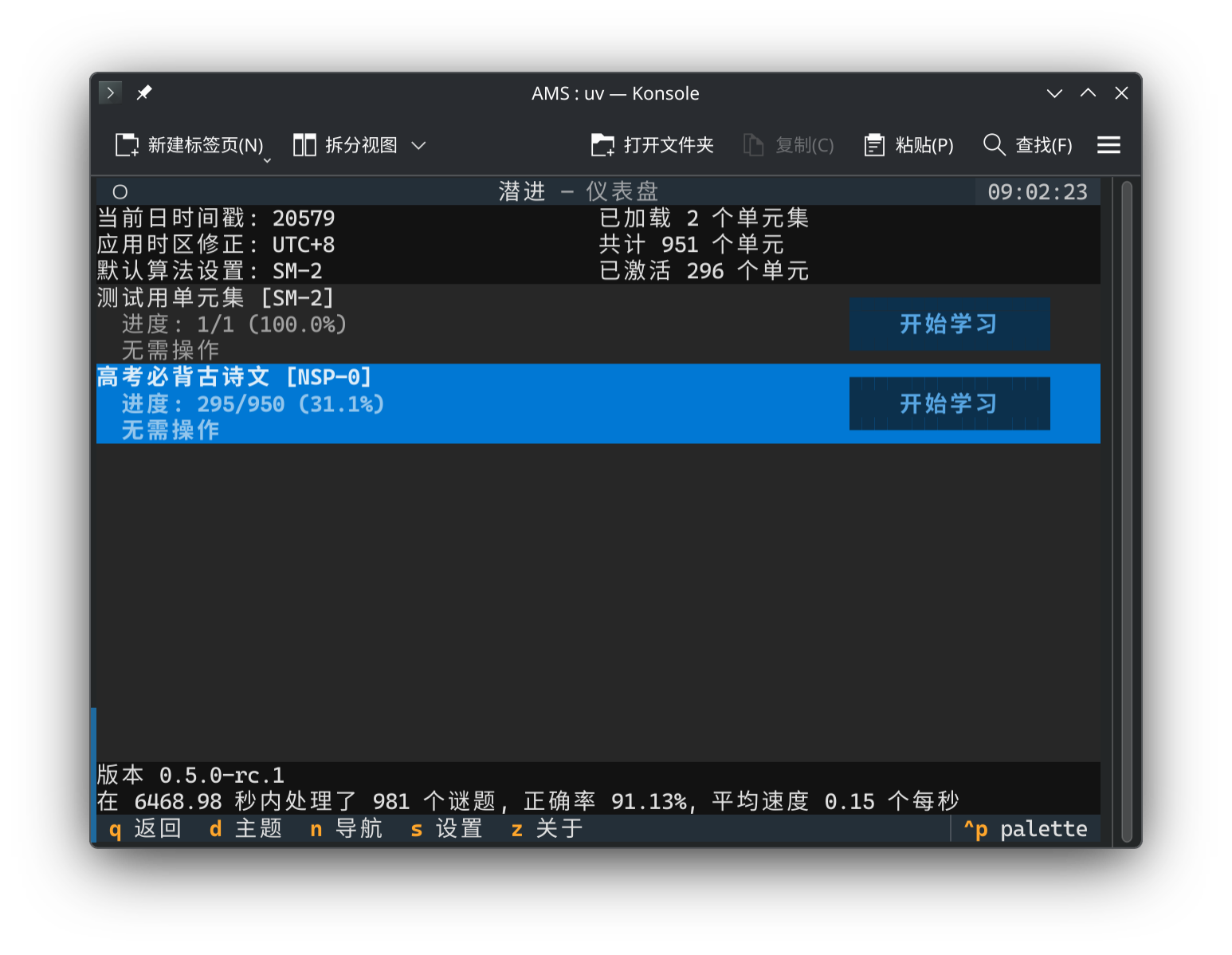
The dashboard provides an overview of the learning panel, including entry points for different functional areas, statistics, and a unit set overview.\
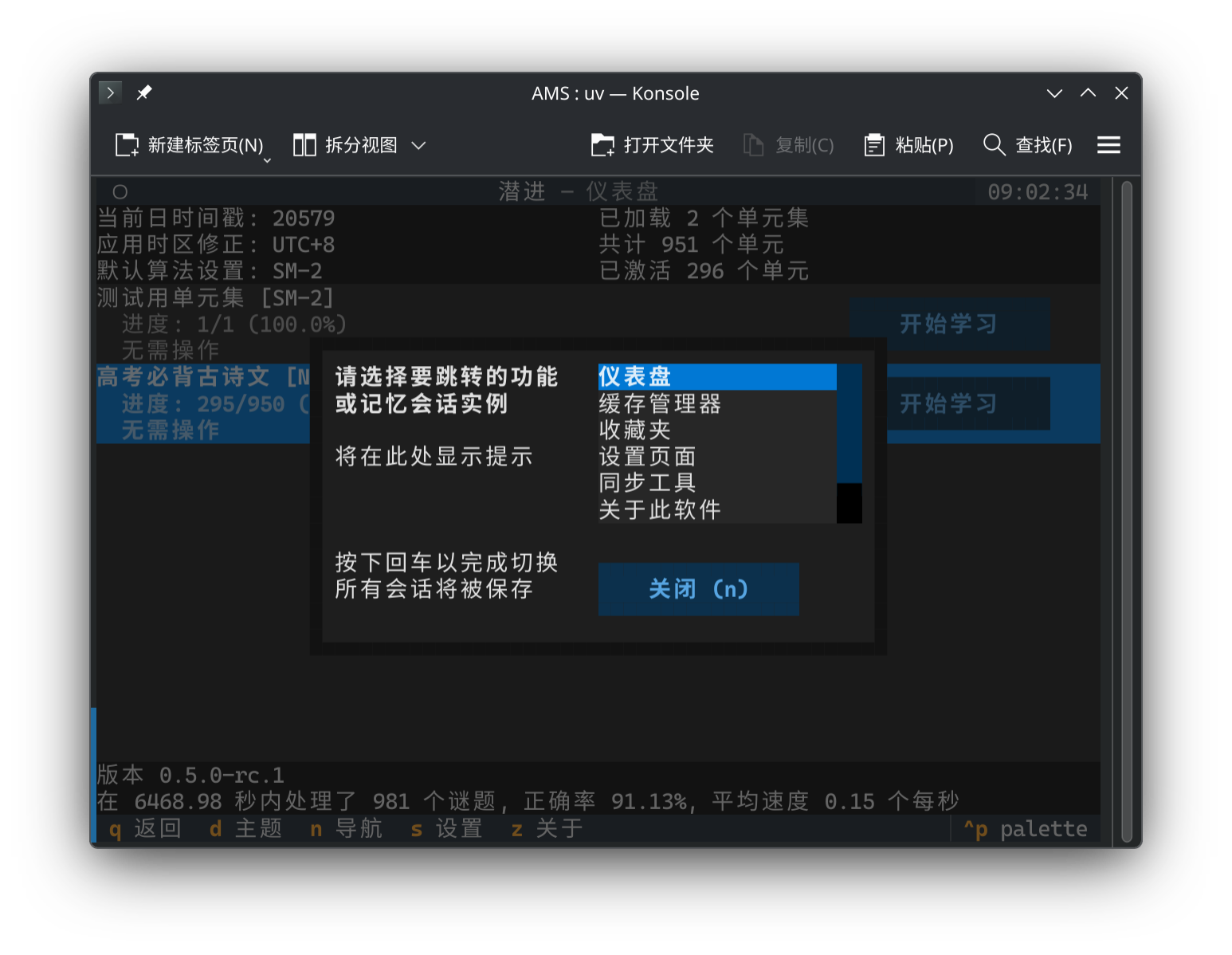
The navigator is a practical modal window that lets you quickly switch between various features. Press the `n` key or click the button below to open/close the navigator from any screen.
### Preparation Screen & Pre-cache Tool
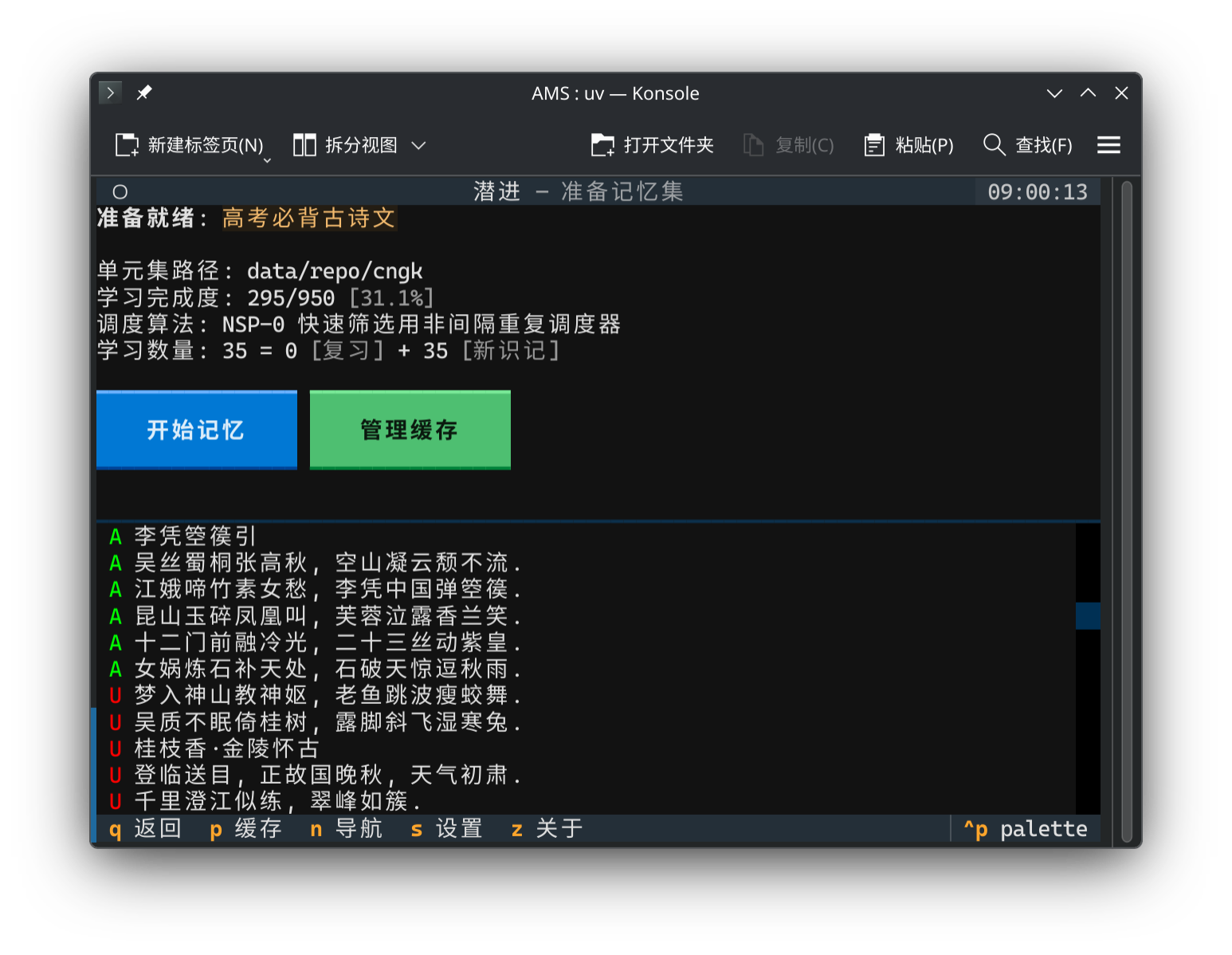
The preparation screen shows unit set basic information and the learning status of each unit, providing entry points for learning and pre-caching.\
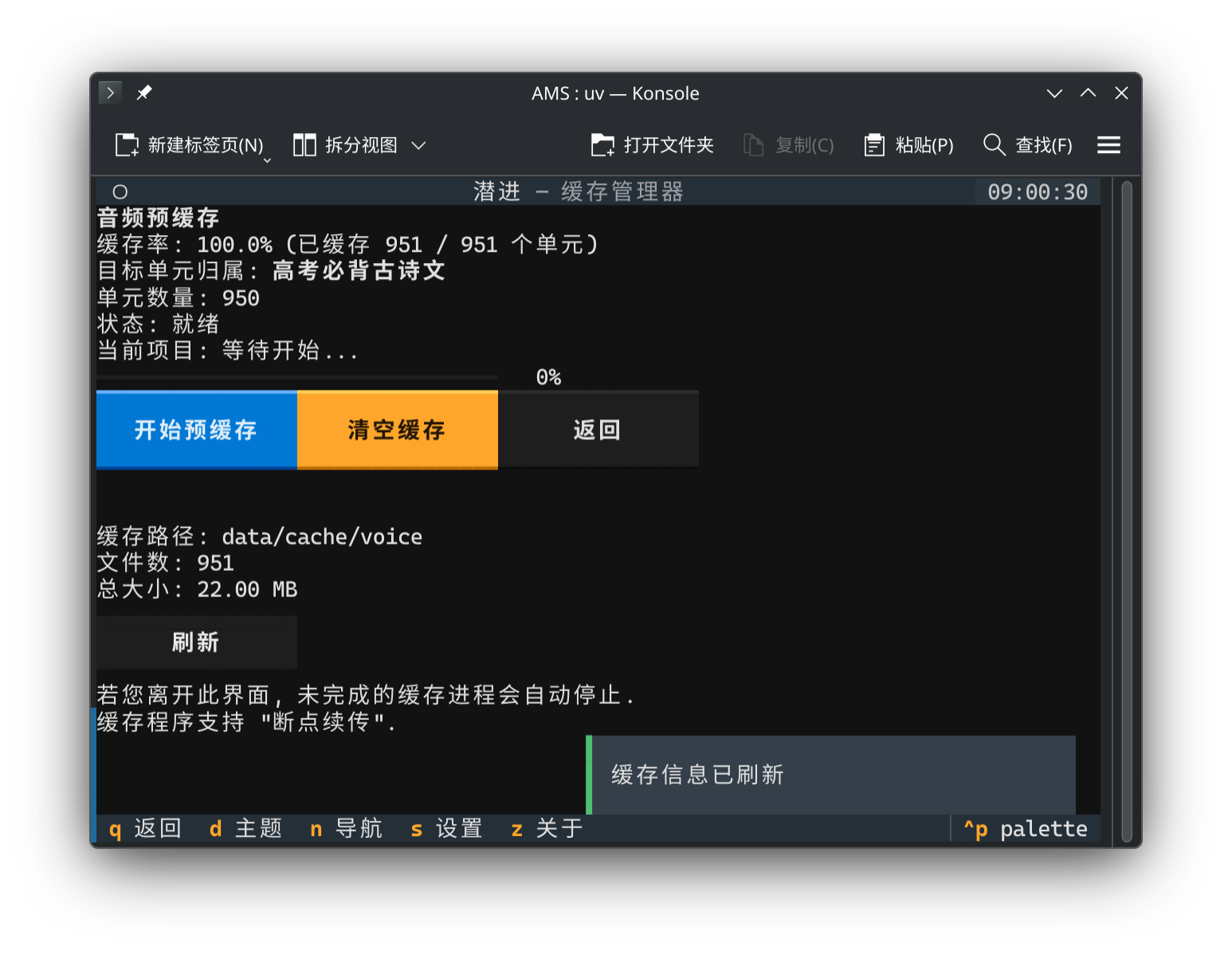
The pre-cache tool allows you to pre-cache TTS resources to ensure a smooth review experience and offline review capability. Even without pre-caching, resources are loaded automatically during review playback.
### Review Queue Screen
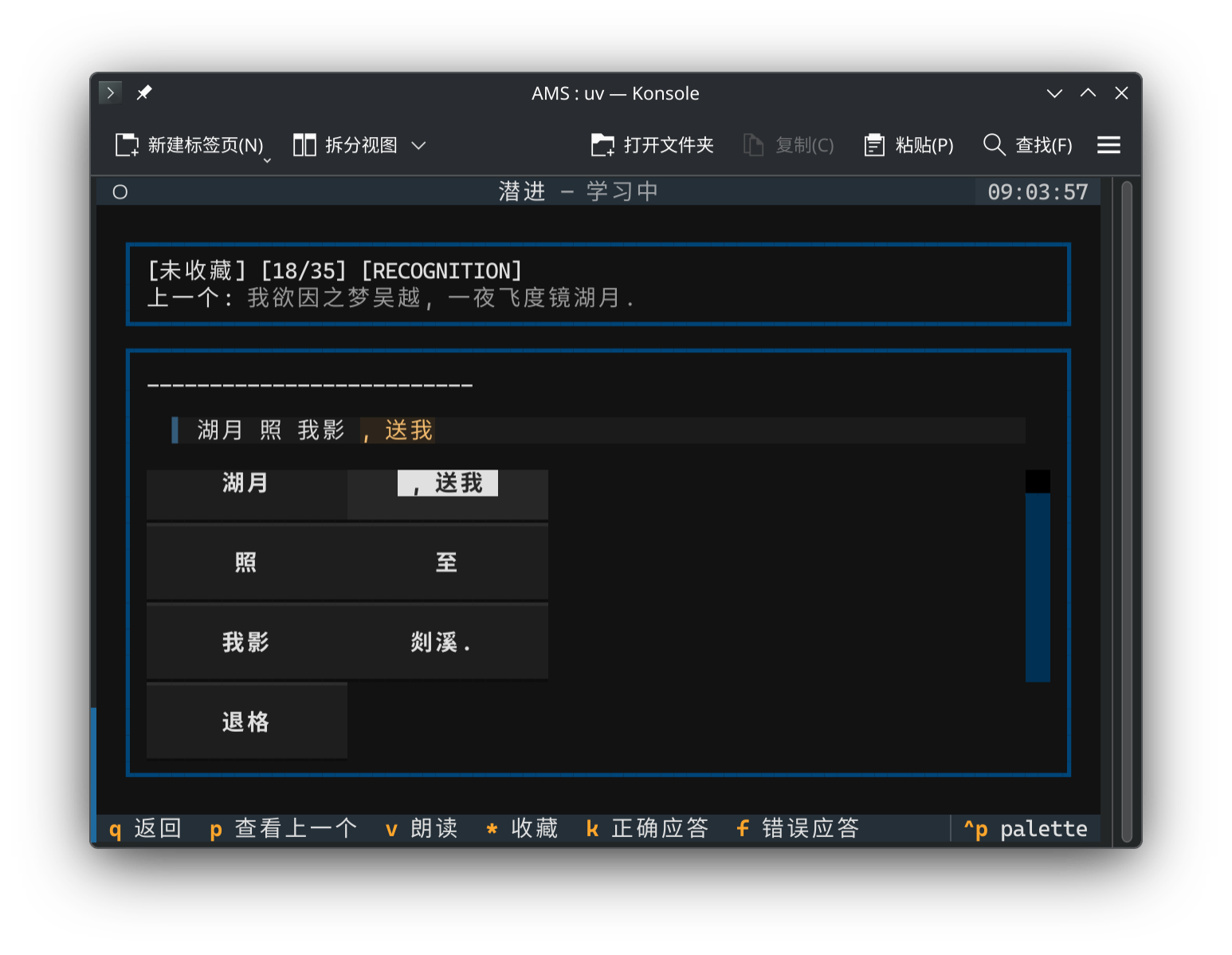
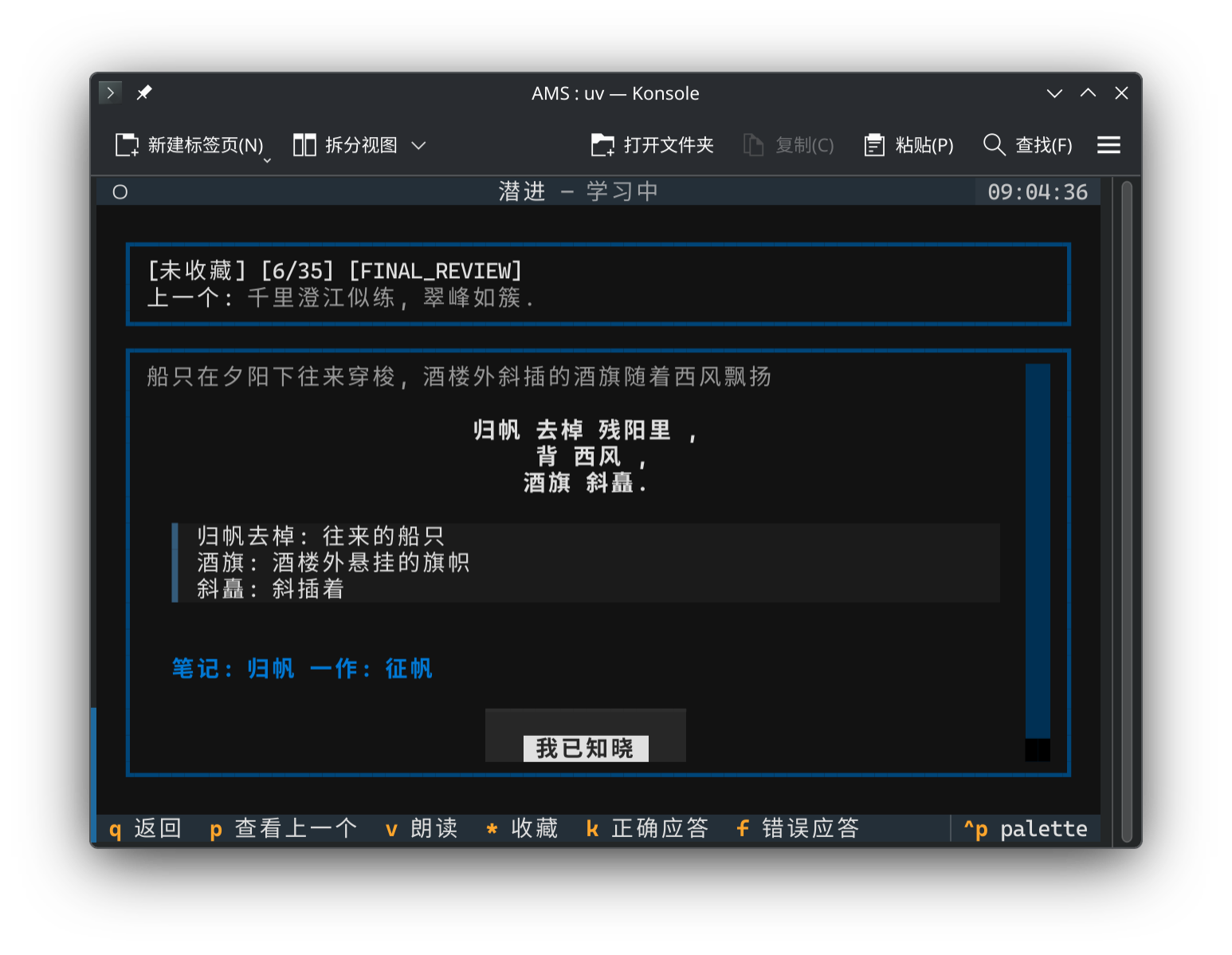
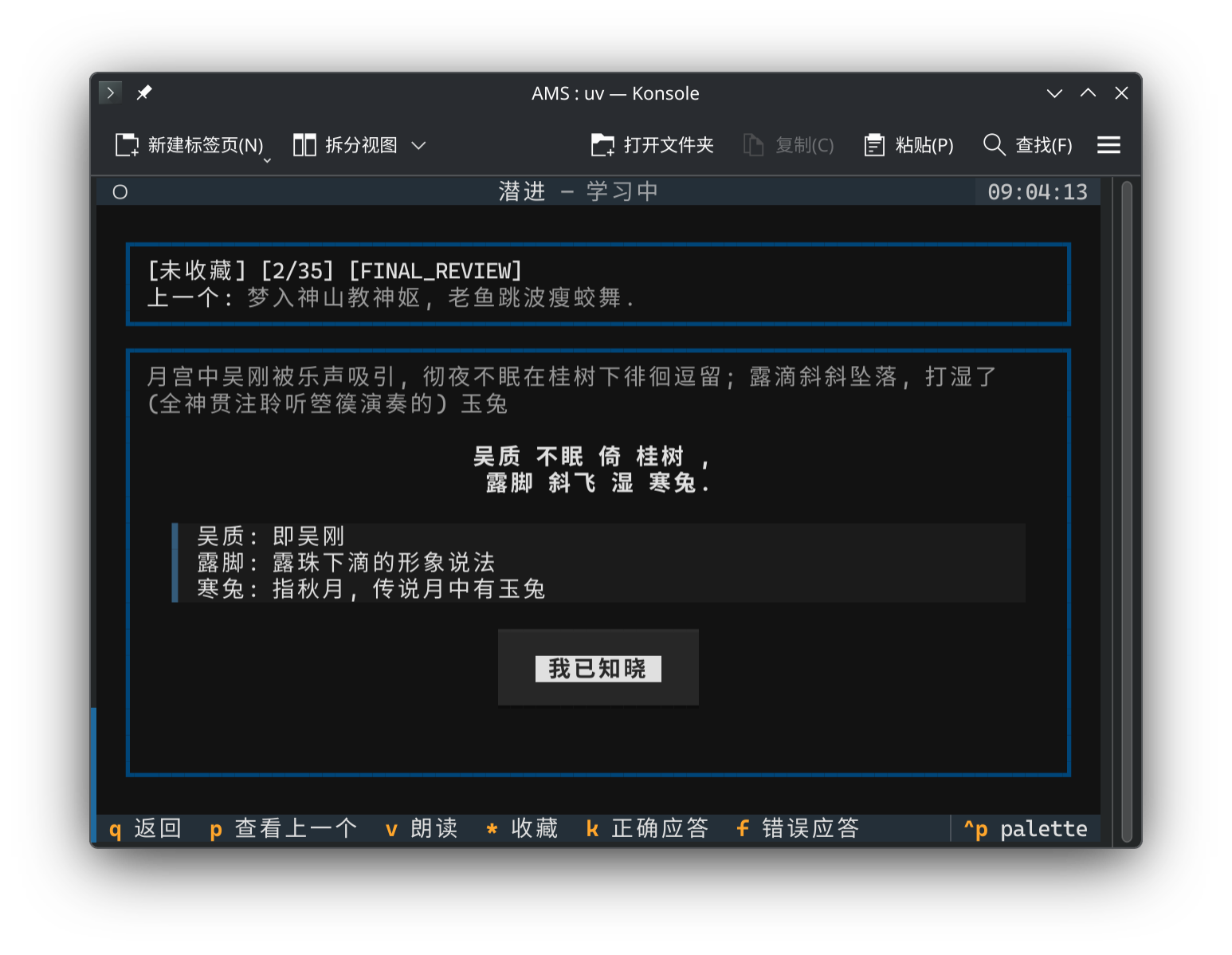
The main screen for queue-based learning and memorization.\
The same knowledge point can generate multiple puzzle types for evaluation. The software includes built-in Cloze, Recognition, and other test types, allowing you to complete different tests sequentially during the review flow.
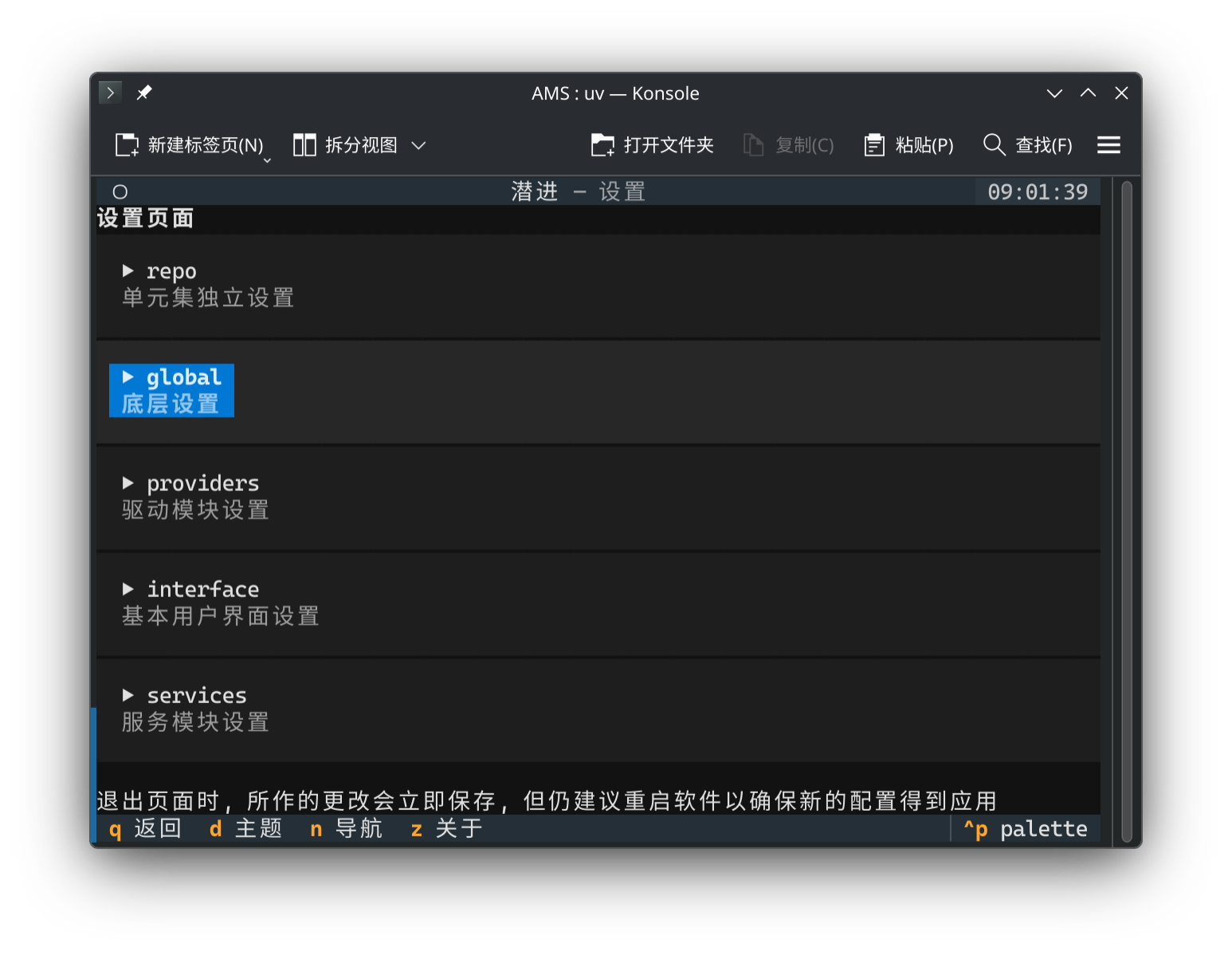
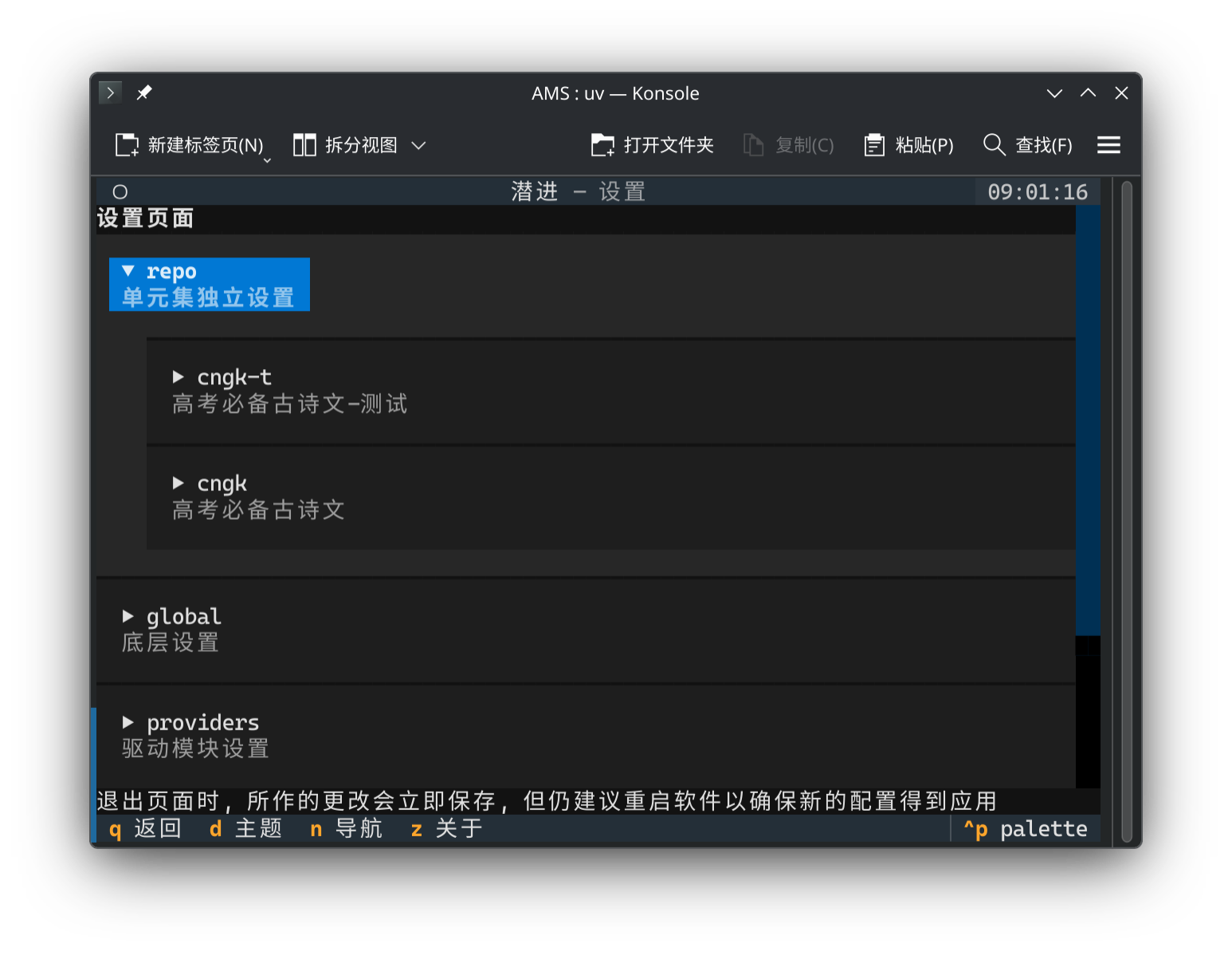
### Settings Screen
The configuration screen includes algorithm selection, provider switching for audio and various services, as well as interface and algorithm settings.
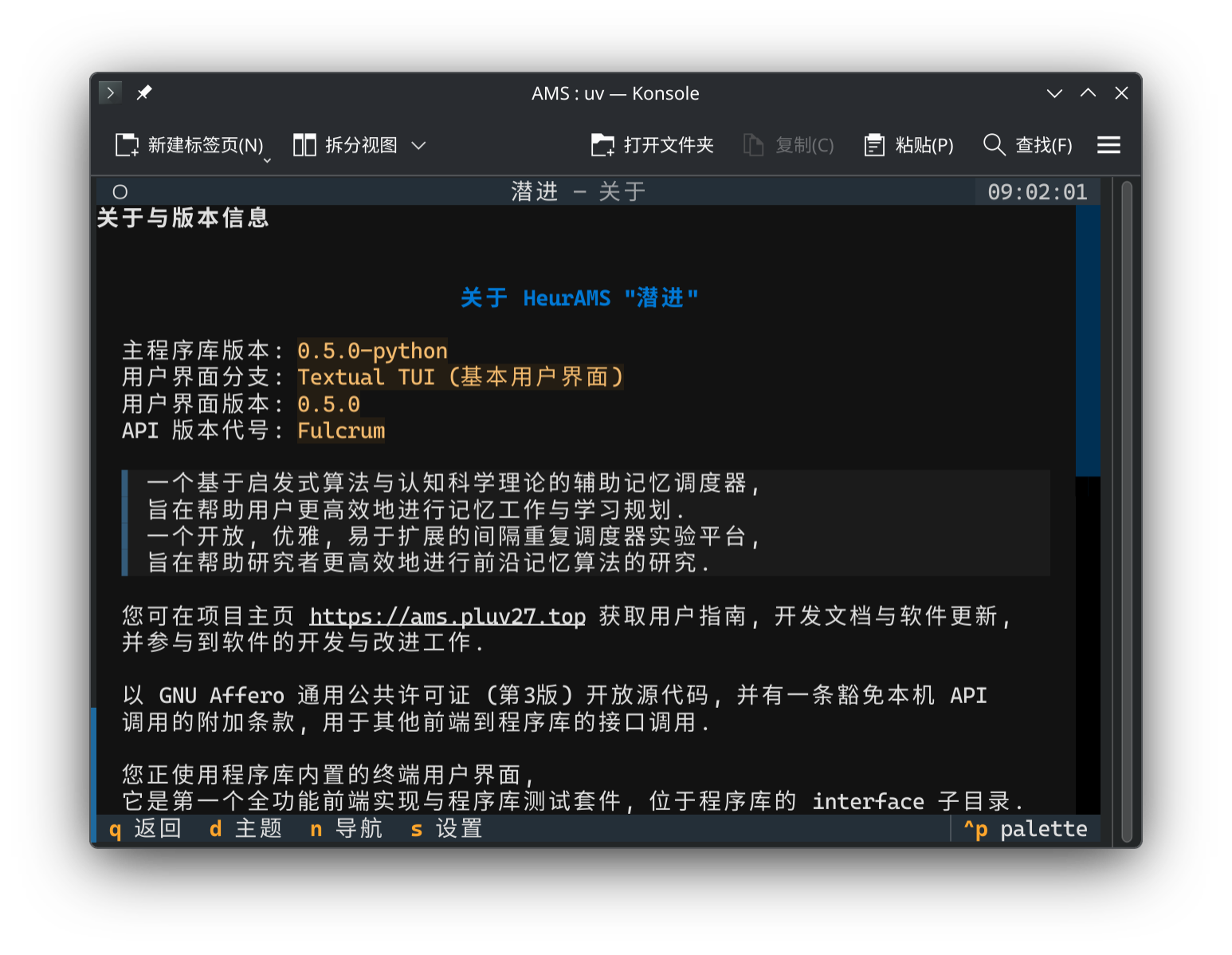
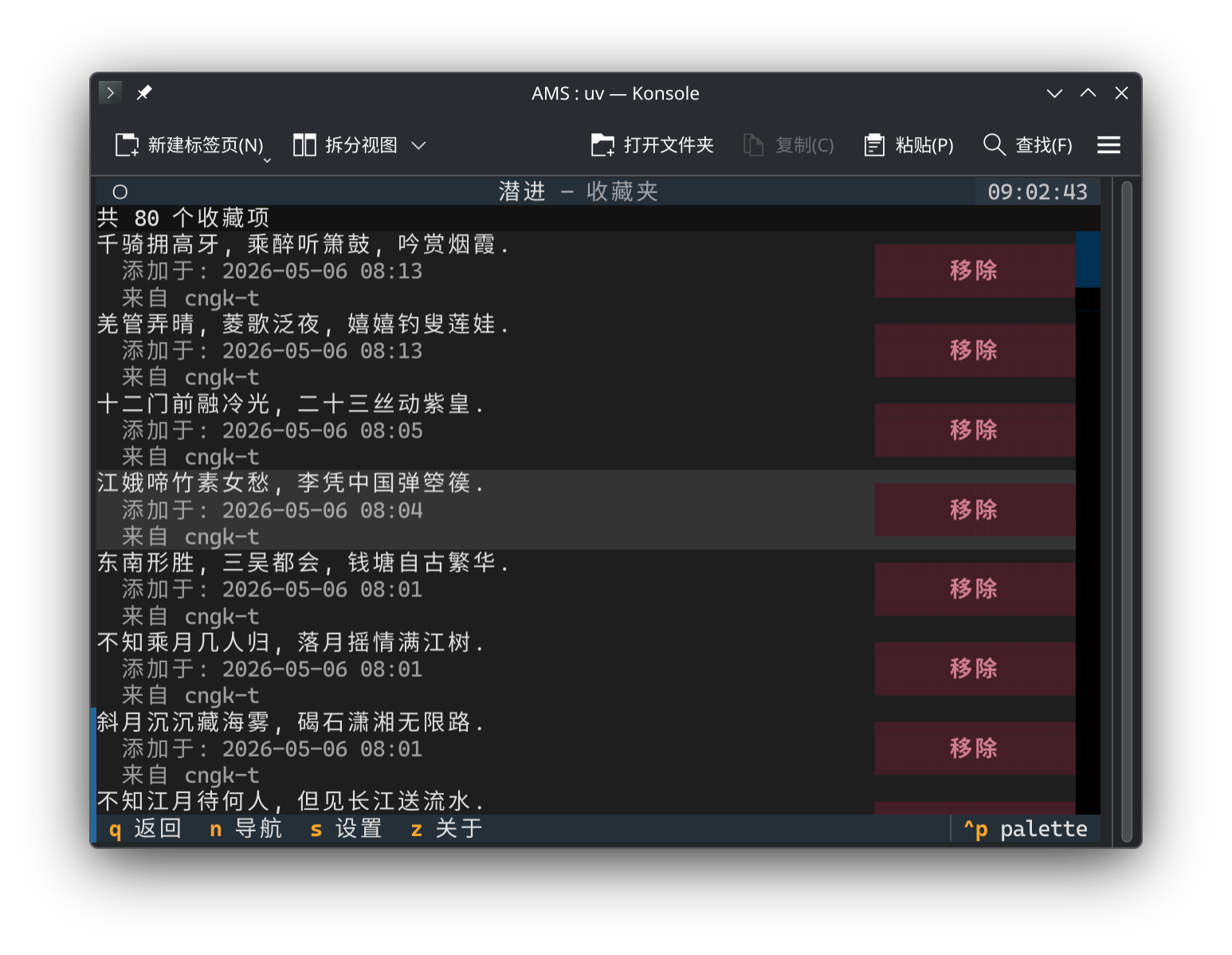
### Other Screens
The favorites manager lets you manage your manually marked personal collections.\
The about page provides program version number, license information, and more.
## Screenshots of the KiriMemo Frontend
Screenshots will be added when the KiriMemo frontend development stabilizes.